Puppeteer is a powerful Node.js library that allows you to automate tasks using a headless version of the Chrome browser. One common task that you may want to automate is uploading a file, such as an image, to a website. This can be useful for a variety of purposes, such as testing file upload functionality or automating the process of uploading files to a server.
In this article, we will explore how to use Puppeteer to upload files to a website, including step-by-step instructions. We will also discuss common errors that you may encounter when uploading files with Puppeteer and how to troubleshoot them.
How to upload a file in Puppeteer?
Uploading files, especially images, using Puppeteer is a common task in web automation. Puppeteer provides a powerful API to interact with web pages and automate tasks such as filling out forms, clicking buttons, and uploading files. In this section, we’ll discuss how to upload an image using Puppeteer.
Launch the browser
In this step, we launch the browser using the puppeteer.launch() method. We pass in an object containing options for launching the browser. In this case, we set the headless option to false so that we can see the automated browsing experience, and we set the args option to ['--start-maximized'] to maximize the browser window.
<pre class="highlight pre-shadow">
<code class="js">
const puppeteer = require('puppeteer');

(async () => {
  // Launching Puppeteer
  const browser = await puppeteer.launch({ headless: false, args: ['--start-maximized'] });
</code>
</pre>
Create a new page
Once the browser is launched, we create a new page using the browser.newPage() method.
<pre class="highlight pre-shadow">
<code class="js">
  const page = await browser.newPage();
</code>
</pre>
Set viewport and user agent
In this step, we set the viewport and user agent for the page. This is just in case for nice viewing. We set the viewport to a width of 1300 pixels and a height of 700 pixels using the page.setViewport() method, and we set the user agent to a string that represents a Chrome browser on Linux using the page.setUserAgent() method.
<pre class="highlight pre-shadow">
<code class="js">
// Setting viewport and user agent
  await page.setViewport({ width: 1300, height: 700 });
  await page.setUserAgent('Mozilla/5.0 (X11; Linux x86_64) AppleWebKit/537.36 (KHTML, like Gecko) Chrome/78.0.3904.108 Safari/537.36');
</code>
</pre>
Go to the image upload webpage
In this step, we navigate to the target image webpage using the page.goto() method. In this case, we navigate to the website https://easyupload.io/.
<pre class="highlight pre-shadow">
<code class="js">
  // Navigating to the target website
  await page.goto('https://easyupload.io/');
</code>
</pre>
Wait for the image file input selector
In this step, we wait for the image file input selector to appear on the page using the page.waitForSelector() method. We pass in the selector string 'input[type=file]' to wait for the image file input element. We also wait for a timeout of 1000 milliseconds using the page.waitForTimeout() method to ensure that the selector is fully loaded.
<pre class="highlight pre-shadow">
<code class="js">
  // Waiting for the image file input selector
  await page.waitForSelector('input[type=file]');
  await page.waitForTimeout(1000);
</code>
</pre>
Get the image file input element handle
In this step, we get the ElementHandle of the image file input selector using the page.$() method. We pass in the selector string 'input[type=file]' to get the file input element.
<pre class="highlight pre-shadow">
<code class="js">
  // Getting the image file input element handle
  const fileInput = await page.$('input[type=file]');
</code>
</pre>
Prepare the image file to upload
In this step, we prepare the image file to upload. We set the fileToUpload variable to the name of the image file we want to upload, which is image.jpg in this case.
<pre class="highlight pre-shadow">
<code class="js">
  // Preparing the image file to upload
  const fileToUpload = 'image.jpg';
</code>
</pre>
Upload the image file
In this step, we upload the image file using the uploadFile() method of the ElementHandle object. We pass in the name of the image file we want to upload as an argument.
<pre class="highlight pre-shadow">
<code class="js">
// Uploading the image file
  await fileInput.uploadFile(fileToUpload);
</code>
</pre>
Trigger the image file upload
In this step, we trigger the image file upload by clicking the upload button. We wait for the upload button selector to appear on the page using the page.waitForSelector() method. We pass in the selector string '#upload' to wait for the upload button element. We then use the page.evaluate() method to execute JavaScript code on the page to click the upload button.
Wait for the uploaded image URL
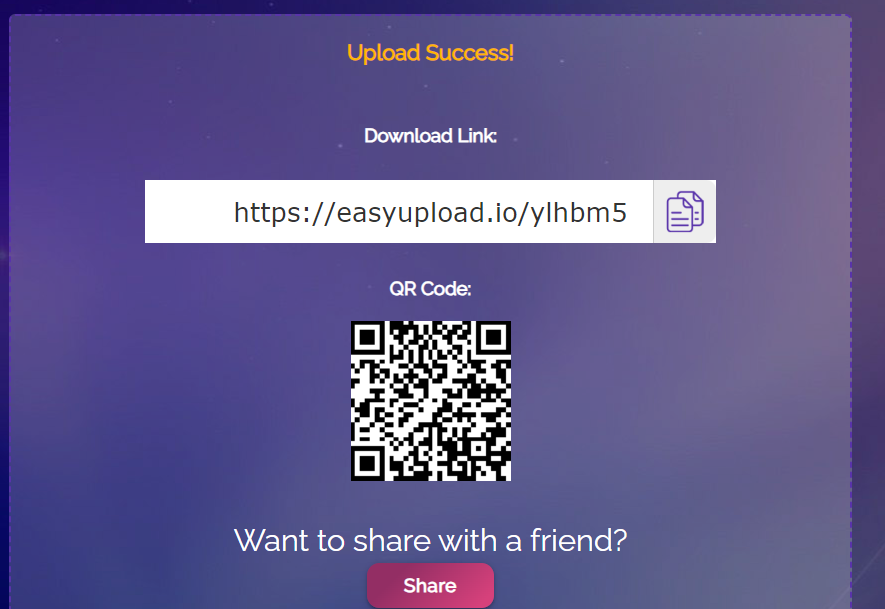
In this step, we wait for the uploaded image file URL to appear on the page using the page.waitForSelector() method. We pass in the selector string '#upload-link' to wait for the uploaded file link element. We also wait for a timeout of 5000 milliseconds using the page.waitForTimeout() method to ensure that the link is fully loaded.
Get the download URL for the image
In this step, we get the download URL of the uploaded image file using the page.evaluate() method. We pass in a JavaScript function that returns the value of the uploaded file link element.
Display the result
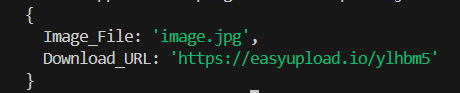
In this step, we display the result on the console using the console.log() method. We pass in an object containing the name of the image file we uploaded and the download URL of the uploaded file.
Close the browser
In this step, we close the browser using the browser.close() method.
Here’s the complete code:
The output of the code is as:
Troubleshooting common errors
Encountering errors while using Puppeteer is not uncommon. Here's a breakdown of some common issues you might face and how to resolve them:
Failed to launch the browser process
Error Description: This error occurs when Puppeteer is unable to launch the browser process.
Causes:
- The version of Chrome or Chromium installed on your system is not compatible with the version of Puppeteer you are using.
- The Chrome or Chromium executable is not in the system’s PATH.
Possible Solutions:
- Upgrade Puppeteer to the latest version using npm install puppeteer@latest.
- Downgrade Puppeteer to a version that is compatible with your installed version of Chrome or Chromium.
- Install a compatible version of Chrome or Chromium.
- Add the Chrome or Chromium executable to the system's PATH.
Timeout exceeded
Error Description: This error occurs when Puppeteer is unable to find the file input selector within the specified timeout period.
Causes:
- The file input selector is not present on the page.
- The file input selector is present on the page but takes longer than the specified timeout period to load.
Possible Solutions:
- Increase the timeout period using the page.waitForSelector() method.
- Check if the file input selector is present on the page by inspecting the page source or using the page.content() method.
Element not found
Error Description: Puppeteer fails to locate a specific element on the page, resulting in an "Element Not Found" error.
Causes:
- Incorrect selector is used to locate the element.
- Dynamic page content that loads asynchronously can cause this error.
- Timing issues with element visibility such as attempting to interact with an element before it is fully loaded, can lead to this error.
Possible Solutions:
- Double-check the selector used to locate the element and verify its correctness.
- Use explicit waits or retry mechanisms to handle dynamic content loading.
- Debug the timing issue by adding explicit delays or adjusting waiting strategies.
Learn more about handling forms in Puppeteer
Handling file uploads in Puppeteer is an essential skill for automating web interactions. With Puppeteer's convenient uploadFile() method, you can easily upload files to a site. Now that you have a solid understanding of file uploads in Puppeteer, explore the rest of Puppeteer's capabilities for handling forms. From filling out form fields to submitting forms, Puppeteer provides a wide range of tools for automating web interactions.